Browsers
Introduction
Each version of copilotbrowser needs specific versions of browser binaries to operate. You will need to use the copilotbrowser CLI to install these browsers.
With every release, copilotbrowser updates the versions of the browsers it supports, so that the latest copilotbrowser would support the latest browsers at any moment. It means that every time you update copilotbrowser, you might need to re-run the install CLI command.
Install browsers
copilotbrowser can install supported browsers. Running the command without arguments will install the default browsers.
npx copilotbrowser install
mvn exec:java -e -D exec.mainClass=com.microsoft.copilotbrowser.CLI -D exec.args="install"
copilotbrowser install
pwsh bin/Debug/netX/copilotbrowser.ps1 install
You can also install specific browsers by providing an argument:
npx copilotbrowser install webkit
mvn exec:java -e -D exec.mainClass=com.microsoft.copilotbrowser.CLI -D exec.args="install webkit"
copilotbrowser install webkit
pwsh bin/Debug/netX/copilotbrowser.ps1 install webkit
See all supported browsers:
npx copilotbrowser install --help
mvn exec:java -e -D exec.mainClass=com.microsoft.copilotbrowser.CLI -D exec.args="install --help"
copilotbrowser install --help
pwsh bin/Debug/netX/copilotbrowser.ps1 install --help
Install browsers via API
It's possible to run Command line tools commands via the .NET API:
var exitCode = Microsoft.copilotbrowser.Program.Main(new[] {"install"});
if (exitCode != 0)
{
    throw new Exception($"copilotbrowser exited with code {exitCode}");
}
Install system dependencies
System dependencies can get installed automatically. This is useful for CI environments.
npx copilotbrowser install-deps
mvn exec:java -e -D exec.mainClass=com.microsoft.copilotbrowser.CLI -D exec.args="install-deps"
copilotbrowser install-deps
pwsh bin/Debug/netX/copilotbrowser.ps1 install-deps
You can also install the dependencies for a single browser by passing it as an argument:
npx copilotbrowser install-deps chromium
mvn exec:java -e -D exec.mainClass=com.microsoft.copilotbrowser.CLI -D exec.args="install-deps chromium"
copilotbrowser install-deps chromium
pwsh bin/Debug/netX/copilotbrowser.ps1 install-deps chromium
It's also possible to combine install-deps with install so that the browsers and OS dependencies are installed with a single command.
npx copilotbrowser install --with-deps chromium
mvn exec:java -e -D exec.mainClass=com.microsoft.copilotbrowser.CLI -D exec.args="install --with-deps chromium"
copilotbrowser install --with-deps chromium
pwsh bin/Debug/netX/copilotbrowser.ps1 install --with-deps chromium
See system requirements for officially supported operating systems.
Update copilotbrowser regularly
By keeping your copilotbrowser version up to date you will be able to use new features and test your app on the latest browser versions and catch failures before the latest browser version is released to the public.
# Update copilotbrowser
npm install -D @copilotbrowser/copilotbrowser@latest

# Install new browsers
npx copilotbrowser install
Check the release notes to see what the latest version is and what changes have been released.
# See what version of copilotbrowser you have by running the following command
npx copilotbrowser --version
Configure Browsers
copilotbrowser can run tests on Chromium, WebKit and Firefox browsers as well as branded browsers such as Google Chrome and Microsoft Edge. It can also run on emulated tablet and mobile devices. See the registry of device parameters for a complete list of selected desktop, tablet and mobile devices.
Run tests on different browsers
copilotbrowser can run your tests in multiple browsers and configurations by setting up projects in the config. You can also add different options for each project.
import { defineConfig, devices } from '@copilotbrowser/copilotbrowser/test';

export default defineConfig({
  projects: [
    /* Test against desktop browsers */
    {
      name: 'chromium',
      use: { ...devices['Desktop Chrome'] },
    },
    {
      name: 'firefox',
      use: { ...devices['Desktop Firefox'] },
    },
    {
      name: 'webkit',
      use: { ...devices['Desktop Safari'] },
    },
    /* Test against mobile viewports. */
    {
      name: 'Mobile Chrome',
      use: { ...devices['Pixel 5'] },
    },
    {
      name: 'Mobile Safari',
      use: { ...devices['iPhone 12'] },
    },
    /* Test against branded browsers. */
    {
      name: 'Google Chrome',
      use: { ...devices['Desktop Chrome'], channel: 'chrome' }, // or 'chrome-beta'
    },
    {
      name: 'Microsoft Edge',
      use: { ...devices['Desktop Edge'], channel: 'msedge' }, // or 'msedge-dev'
    },
  ],
});
copilotbrowser will run all projects by default.
npx copilotbrowser test

Running 7 tests using 5 workers

  ✓ [chromium] › example.spec.ts:3:1 › basic test (2s)
  ✓ [firefox] › example.spec.ts:3:1 › basic test (2s)
  ✓ [webkit] › example.spec.ts:3:1 › basic test (2s)
  ✓ [Mobile Chrome] › example.spec.ts:3:1 › basic test (2s)
  ✓ [Mobile Safari] › example.spec.ts:3:1 › basic test (2s)
  ✓ [Google Chrome] › example.spec.ts:3:1 › basic test (2s)
  ✓ [Microsoft Edge] › example.spec.ts:3:1 › basic test (2s)
Use the --project command line option to run a single project.
npx copilotbrowser test --project=firefox

Running 1 test using 1 worker

  ✓ [firefox] › example.spec.ts:3:1 › basic test (2s)
With the VS Code extension you can run your tests on different browsers by checking the checkbox next to the browser name in the copilotbrowser sidebar. These names are defined in your copilotbrowser config file under the projects section. The default config when installing copilotbrowser gives you 3 projects, Chromium, Firefox and WebKit. The first project is selected by default.
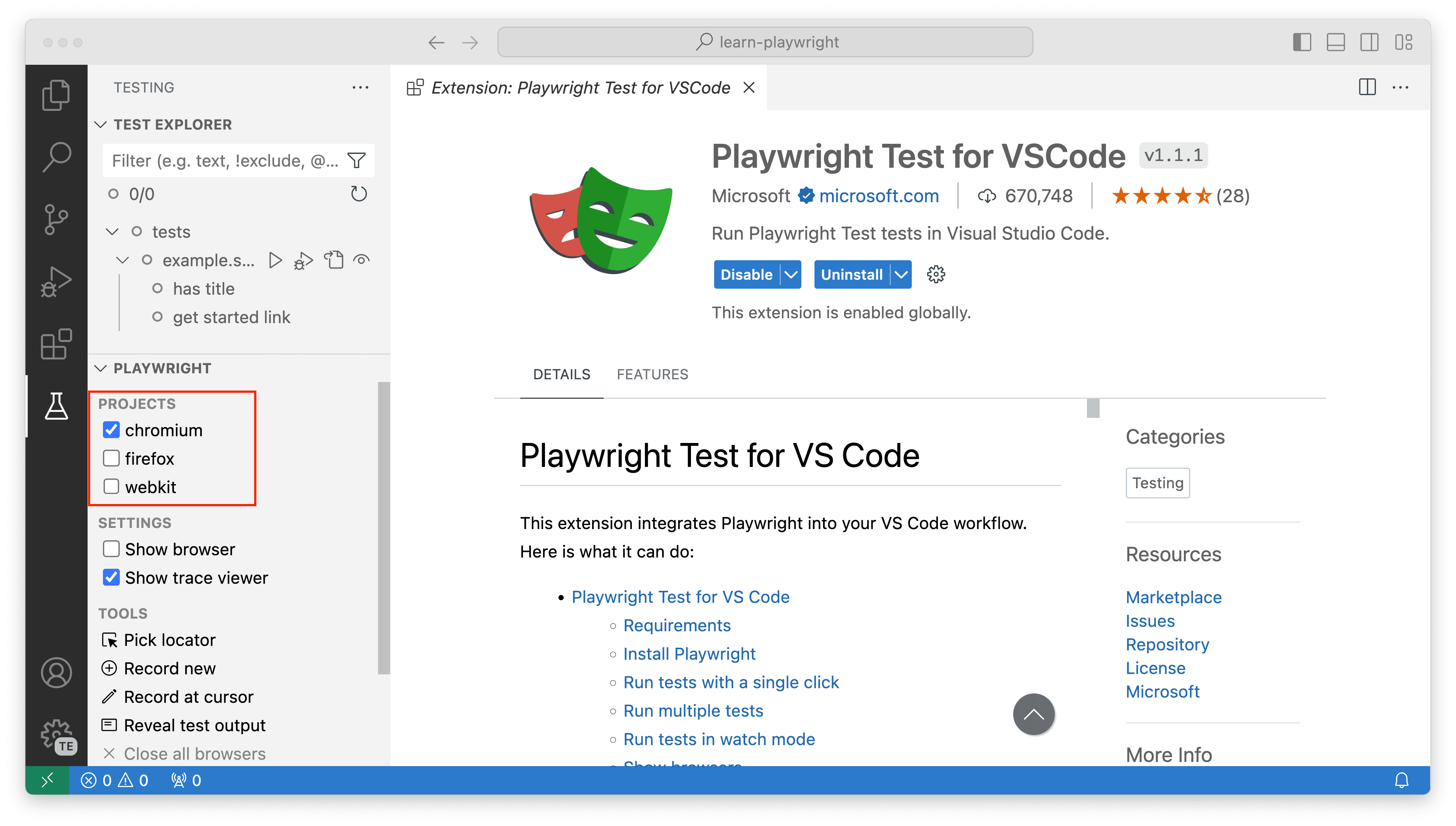
To run tests on multiple projects(browsers), select each project by checking the checkboxes next to the project name.
Run tests on different browsers
Run tests on a specific browser:
pytest test_login.py --browser webkit
Run tests on multiple browsers:
pytest test_login.py --browser webkit --browser firefox
Test against mobile viewports:
pytest test_login.py --device="iPhone 13"
Test against branded browsers:
pytest test_login.py --browser-channel msedge
Run tests on different browsers
Run tests on a specific browser:
import com.microsoft.copilotbrowser.*;

public class Example {
  public static void main(String[] args) {
    try (copilotbrowser copilotbrowser = copilotbrowser.create()) {
      // Launch chromium, firefox or webkit.
      Browser browser = copilotbrowser.chromium().launch();
      Page page = browser.newPage();
      // ...
    }
  }
}
Run tests on multiple browsers and make it based on the environment variable BROWSER:
import com.microsoft.copilotbrowser.*;

public class Example {
  public static void main(String[] args) {
    try (copilotbrowser copilotbrowser = copilotbrowser.create()) {
      Browser browser = null;
      String browserName = System.getenv("BROWSER");
      if (browserName.equals("chromium")) {
        browser = copilotbrowser.chromium().launch();
      } else if (browserName.equals("firefox")) {
        browser = copilotbrowser.firefox().launch();
      } else if (browserName.equals("webkit")) {
        browser = copilotbrowser.webkit().launch();
      }
      Page page = browser.newPage();
      // ...
    }
  }
}
Run tests on different browsers
Run tests on a specific browser:
dotnet test -- copilotbrowser.BrowserName=webkit
To run your test on multiple browsers or configurations you need to invoke the dotnet test command multiple times. You can either specify the BROWSER environment variable or set the copilotbrowser.BrowserName via the runsettings file:
dotnet test --settings:chromium.runsettings
dotnet test --settings:firefox.runsettings
dotnet test --settings:webkit.runsettings
<?xml version="1.0" encoding="utf-8"?>
  <RunSettings>
    <copilotbrowser>
      <BrowserName>chromium</BrowserName>
    </copilotbrowser>
  </RunSettings>
Chromium
For Google Chrome, Microsoft Edge and other Chromium-based browsers, by default, copilotbrowser uses open source Chromium builds. Since the Chromium project is ahead of the branded browsers, when the world is on Google Chrome N, copilotbrowser already supports Chromium N+1 that will be released in Google Chrome and Microsoft Edge a few weeks later.
Chromium: headless shell
copilotbrowser ships a regular Chromium build for headed operations and a separate chromium headless shell for headless mode.
If you are only running tests in headless shell (i.e. the channel option is not specified), for example on CI, you can avoid downloading the full Chromium browser by passing --only-shell during installation.
# only running tests headlessly
npx copilotbrowser install --with-deps --only-shell
# only running tests headlessly
mvn exec:java -e -D exec.mainClass=com.microsoft.copilotbrowser.CLI -D exec.args="install --with-deps --only-shell"
# only running tests headlessly
copilotbrowser install --with-deps --only-shell
# only running tests headlessly
pwsh bin/Debug/netX/copilotbrowser.ps1 install --with-deps --only-shell
Chromium: new headless mode
You can opt into the new headless mode by using 'chromium' channel. As official Chrome documentation puts it:
New Headless on the other hand is the real Chrome browser, and is thus more authentic, reliable, and offers more features. This makes it more suitable for high-accuracy end-to-end web app testing or browser extension testing.
See issue #33566 for details.
import { defineConfig, devices } from '@copilotbrowser/copilotbrowser/test';

export default defineConfig({
  projects: [
    {
      name: 'chromium',
      use: { ...devices['Desktop Chrome'], channel: 'chromium' },
    },
  ],
});
import com.microsoft.copilotbrowser.*;

public class Example {
  public static void main(String[] args) {
    try (copilotbrowser copilotbrowser = copilotbrowser.create()) {
      Browser browser = copilotbrowser.chromium().launch(new BrowserType.LaunchOptions().setChannel("chromium"));
      Page page = browser.newPage();
      // ...
    }
  }
}
pytest test_login.py --browser-channel chromium
<?xml version="1.0" encoding="utf-8"?>
<RunSettings>
  <copilotbrowser>
    <BrowserName>chromium</BrowserName>
    <LaunchOptions>
      <Channel>chromium</Channel>
    </LaunchOptions>
  </copilotbrowser>
</RunSettings>
dotnet test -- copilotbrowser.BrowserName=chromium copilotbrowser.LaunchOptions.Channel=chromium
With the new headless mode, you can skip downloading the headless shell during browser installation by using the --no-shell option:
# only running tests headlessly
npx copilotbrowser install --with-deps --no-shell
# only running tests headlessly
mvn exec:java -e -D exec.mainClass=com.microsoft.copilotbrowser.CLI -D exec.args="install --with-deps --no-shell"
# only running tests headlessly
copilotbrowser install --with-deps --no-shell
# only running tests headlessly
pwsh bin/Debug/netX/copilotbrowser.ps1 install --with-deps --no-shell
Google Chrome & Microsoft Edge
While copilotbrowser can download and use the recent Chromium build, it can operate against the branded Google Chrome and Microsoft Edge browsers available on the machine (note that copilotbrowser doesn't install them by default). In particular, the current copilotbrowser version will support Stable and Beta channels of these browsers.
Available channels are chrome, msedge, chrome-beta, msedge-beta, chrome-dev, msedge-dev, chrome-canary, msedge-canary.
Certain Enterprise Browser Policies may impact copilotbrowser's ability to launch and control Google Chrome and Microsoft Edge. Running in an environment with browser policies is outside of the copilotbrowser project's scope.
Google Chrome and Microsoft Edge have switched to a new headless mode implementation that is closer to a regular headed mode. This differs from chromium headless shell that is used in copilotbrowser by default when running headless, so expect different behavior in some cases. See issue #33566 for details.
import { defineConfig, devices } from '@copilotbrowser/copilotbrowser/test';

export default defineConfig({
  projects: [
    /* Test against branded browsers. */
    {
      name: 'Google Chrome',
      use: { ...devices['Desktop Chrome'], channel: 'chrome' }, // or 'chrome-beta'
    },
    {
      name: 'Microsoft Edge',
      use: { ...devices['Desktop Edge'], channel: 'msedge' }, // or "msedge-beta" or 'msedge-dev'
    },
  ],
});
import com.microsoft.copilotbrowser.*;

public class Example {
  public static void main(String[] args) {
    try (copilotbrowser copilotbrowser = copilotbrowser.create()) {
      // Channel can be "chrome", "msedge", "chrome-beta", "msedge-beta" or "msedge-dev".
      Browser browser = copilotbrowser.chromium().launch(new BrowserType.LaunchOptions().setChannel("msedge"));
      Page page = browser.newPage();
      // ...
    }
  }
}
pytest test_login.py --browser-channel msedge
<?xml version="1.0" encoding="utf-8"?>
<RunSettings>
  <copilotbrowser>
    <BrowserName>chromium</BrowserName>
    <LaunchOptions>
      <Channel>msedge</Channel>
    </LaunchOptions>
  </copilotbrowser>
</RunSettings>
dotnet test -- copilotbrowser.BrowserName=chromium copilotbrowser.LaunchOptions.Channel=msedge
Alternatively when using the library directly, you can specify the browser BrowserType.launch.channel when launching the browser:
from copilotbrowser.sync_api import sync_copilotbrowser

with sync_copilotbrowser() as p:
    # Channel can be "chrome", "msedge", "chrome-beta", "msedge-beta" or "msedge-dev".
    browser = p.chromium.launch(channel="msedge")
    page = browser.new_page()
    page.goto("https://copilotbrowser.dev")
    print(page.title())
    browser.close()
Installing Google Chrome & Microsoft Edge
If Google Chrome or Microsoft Edge is not available on your machine, you can install them using the copilotbrowser command line tool:
npx copilotbrowser install msedge
copilotbrowser install msedge
pwsh bin/Debug/netX/copilotbrowser.ps1 install msedge
mvn exec:java -e -D exec.mainClass=com.microsoft.copilotbrowser.CLI -D exec.args="install msedge"
Google Chrome or Microsoft Edge installations will be installed at the default global location of your operating system overriding your current browser installation.
Run with the --help option to see a full a list of browsers that can be installed.
When to use Google Chrome & Microsoft Edge and when not to?
Defaults
Using the default copilotbrowser configuration with the latest Chromium is a good idea most of the time. Since copilotbrowser is ahead of Stable channels for the browsers, it gives peace of mind that the upcoming Google Chrome or Microsoft Edge releases won't break your site. You catch breakage early and have a lot of time to fix it before the official Chrome update.
Regression testing
Having said that, testing policies often require regression testing to be performed against
the current publicly available browsers. In this case, you can opt into one of the stable channels,
"chrome" or "msedge".
Media codecs
Another reason for testing using official binaries is to test functionality related to media codecs. Chromium does not have all the codecs that Google Chrome or Microsoft Edge are bundling due to various licensing considerations and agreements. If your site relies on this kind of codecs (which is rarely the case), you will also want to use the official channel.
Enterprise policy
Google Chrome and Microsoft Edge respect enterprise policies, which include limitations to the capabilities, network proxy, mandatory extensions that stand in the way of testing. So if you are part of the organization that uses such policies, it is easiest to use bundled Chromium for your local testing, you can still opt into stable channels on the bots that are typically free of such restrictions.
Firefox
copilotbrowser's Firefox version matches the recent Firefox Stable build. copilotbrowser doesn't work with the branded version of Firefox since it relies on patches.
Note that availability of certain features, which depend heavily on the underlying platform, may vary between operating systems. For example, available media codecs vary substantially between Linux, macOS and Windows.
WebKit
copilotbrowser's WebKit is derived from the latest WebKit main branch sources, often before these updates are incorporated into Apple Safari and other WebKit-based browsers. This gives a lot of lead time to react on the potential browser update issues. copilotbrowser doesn't work with the branded version of Safari since it relies on patches. Instead, you can test using the most recent WebKit build.
Note that availability of certain features, which depend heavily on the underlying platform, may vary between operating systems. For example, available media codecs vary substantially between Linux, macOS and Windows. While running WebKit on Linux CI is usually the most affordable option, for the closest-to-Safari experience you should run WebKit on mac, for example if you do video playback.
Install behind a firewall or a proxy
By default, copilotbrowser downloads browsers from Microsoft's CDN.
Sometimes companies maintain an internal proxy that blocks direct access to the public resources. In this case, copilotbrowser can be configured to download browsers via a proxy server.
HTTPS_PROXY=https://192.0.2.1 npx copilotbrowser install
set HTTPS_PROXY=https://192.0.2.1
npx copilotbrowser install
$Env:HTTPS_PROXY="https://192.0.2.1"
npx copilotbrowser install
pip install copilotbrowser
HTTPS_PROXY=https://192.0.2.1 copilotbrowser install
set HTTPS_PROXY=https://192.0.2.1
pip install copilotbrowser
copilotbrowser install
$Env:HTTPS_PROXY="https://192.0.2.1"
pip install copilotbrowser
copilotbrowser install
HTTPS_PROXY=https://192.0.2.1 mvn exec:java -e -D exec.mainClass=com.microsoft.copilotbrowser.CLI -D exec.args="install"
set HTTPS_PROXY=https://192.0.2.1
mvn exec:java -e -D exec.mainClass=com.microsoft.copilotbrowser.CLI -D exec.args="install"
$Env:HTTPS_PROXY="https://192.0.2.1"
mvn exec:java -e -D exec.mainClass=com.microsoft.copilotbrowser.CLI -D exec.args="install"
HTTPS_PROXY=https://192.0.2.1 pwsh bin/Debug/netX/copilotbrowser.ps1 install
set HTTPS_PROXY=https://192.0.2.1
pwsh bin/Debug/netX/copilotbrowser.ps1 install
$Env:HTTPS_PROXY="https://192.0.2.1"
pwsh bin/Debug/netX/copilotbrowser.ps1 install
If the requests of the proxy get intercepted with a custom untrusted certificate authority (CA) and it yields to Error: self signed certificate in certificate chain while downloading the browsers, you must set your custom root certificates via the NODE_EXTRA_CA_CERTS environment variable before installing the browsers:
export NODE_EXTRA_CA_CERTS="/path/to/cert.pem"
set NODE_EXTRA_CA_CERTS="C:\certs\root.crt"
$Env:NODE_EXTRA_CA_CERTS="C:\certs\root.crt"
If your network is slow to connect to copilotbrowser browser archive, you can increase the connection timeout in milliseconds with copilotbrowser_DOWNLOAD_CONNECTION_TIMEOUT environment variable:
copilotbrowser_DOWNLOAD_CONNECTION_TIMEOUT=120000 npx copilotbrowser install
set copilotbrowser_DOWNLOAD_CONNECTION_TIMEOUT=120000
npx copilotbrowser install
$Env:copilotbrowser_DOWNLOAD_CONNECTION_TIMEOUT="120000"
npx copilotbrowser install
pip install copilotbrowser
copilotbrowser_DOWNLOAD_CONNECTION_TIMEOUT=120000 copilotbrowser install
set copilotbrowser_DOWNLOAD_CONNECTION_TIMEOUT=120000
pip install copilotbrowser
copilotbrowser install
$Env:copilotbrowser_DOWNLOAD_CONNECTION_TIMEOUT="120000"
pip install copilotbrowser
copilotbrowser install
copilotbrowser_DOWNLOAD_CONNECTION_TIMEOUT=120000 mvn exec:java -e -D exec.mainClass=com.microsoft.copilotbrowser.CLI -D exec.args="install"
set copilotbrowser_DOWNLOAD_CONNECTION_TIMEOUT=120000
mvn exec:java -e -D exec.mainClass=com.microsoft.copilotbrowser.CLI -D exec.args="install"
$Env:copilotbrowser_DOWNLOAD_CONNECTION_TIMEOUT="120000"
mvn exec:java -e -D exec.mainClass=com.microsoft.copilotbrowser.CLI -D exec.args="install"
copilotbrowser_DOWNLOAD_CONNECTION_TIMEOUT=120000 pwsh bin/Debug/netX/copilotbrowser.ps1 install
set copilotbrowser_DOWNLOAD_CONNECTION_TIMEOUT=120000
pwsh bin/Debug/netX/copilotbrowser.ps1 install
$Env:copilotbrowser_DOWNLOAD_CONNECTION_TIMEOUT="120000"
pwsh bin/Debug/netX/copilotbrowser.ps1 install
If you are installing dependencies and need to use a proxy on Linux, make sure to run the command as a root user. Otherwise, copilotbrowser will attempt to become a root and will not pass environment variables like HTTPS_PROXY to the linux package manager.
sudo HTTPS_PROXY=https://192.0.2.1 npx copilotbrowser install-deps
sudo HTTPS_PROXY=https://192.0.2.1 mvn exec:java -e -D exec.mainClass=com.microsoft.copilotbrowser.CLI -D exec.args="install-deps"
sudo HTTPS_PROXY=https://192.0.2.1 copilotbrowser install-deps
sudo HTTPS_PROXY=https://192.0.2.1 pwsh bin/Debug/netX/copilotbrowser.ps1 install-deps
Download from artifact repository
By default, copilotbrowser downloads browsers from Microsoft's CDN.
Sometimes companies maintain an internal artifact repository to host browser
binaries. In this case, copilotbrowser can be configured to download from a custom
location using the copilotbrowser_DOWNLOAD_HOST env variable.
copilotbrowser_DOWNLOAD_HOST=http://192.0.2.1 npx copilotbrowser install
set copilotbrowser_DOWNLOAD_HOST=http://192.0.2.1
npx copilotbrowser install
$Env:copilotbrowser_DOWNLOAD_HOST="http://192.0.2.1"
npx copilotbrowser install
pip install copilotbrowser
copilotbrowser_DOWNLOAD_HOST=http://192.0.2.1 copilotbrowser install
set copilotbrowser_DOWNLOAD_HOST=http://192.0.2.1
pip install copilotbrowser
copilotbrowser install
$Env:copilotbrowser_DOWNLOAD_HOST="http://192.0.2.1"
pip install copilotbrowser
copilotbrowser install
copilotbrowser_DOWNLOAD_HOST=http://192.0.2.1 mvn exec:java -e -D exec.mainClass=com.microsoft.copilotbrowser.CLI -D exec.args="install"
set copilotbrowser_DOWNLOAD_HOST=http://192.0.2.1
mvn exec:java -e -D exec.mainClass=com.microsoft.copilotbrowser.CLI -D exec.args="install"
$Env:copilotbrowser_DOWNLOAD_HOST="http://192.0.2.1"
mvn exec:java -e -D exec.mainClass=com.microsoft.copilotbrowser.CLI -D exec.args="install"
copilotbrowser_DOWNLOAD_HOST=http://192.0.2.1 pwsh bin/Debug/netX/copilotbrowser.ps1 install
set copilotbrowser_DOWNLOAD_HOST=http://192.0.2.1
pwsh bin/Debug/netX/copilotbrowser.ps1 install
$Env:copilotbrowser_DOWNLOAD_HOST="http://192.0.2.1"
pwsh bin/Debug/netX/copilotbrowser.ps1 install
It is also possible to use a per-browser download hosts using copilotbrowser_CHROMIUM_DOWNLOAD_HOST, copilotbrowser_FIREFOX_DOWNLOAD_HOST and copilotbrowser_WEBKIT_DOWNLOAD_HOST env variables that
take precedence over copilotbrowser_DOWNLOAD_HOST.
copilotbrowser_FIREFOX_DOWNLOAD_HOST=http://203.0.113.3 copilotbrowser_DOWNLOAD_HOST=http://192.0.2.1 npx copilotbrowser install
set copilotbrowser_FIREFOX_DOWNLOAD_HOST=http://203.0.113.3
set copilotbrowser_DOWNLOAD_HOST=http://192.0.2.1
npx copilotbrowser install
$Env:copilotbrowser_FIREFOX_DOWNLOAD_HOST="http://203.0.113.3"
$Env:copilotbrowser_DOWNLOAD_HOST="http://192.0.2.1"
npx copilotbrowser install
pip install copilotbrowser
copilotbrowser_FIREFOX_DOWNLOAD_HOST=http://203.0.113.3 copilotbrowser_DOWNLOAD_HOST=http://192.0.2.1 copilotbrowser install
set copilotbrowser_FIREFOX_DOWNLOAD_HOST=http://203.0.113.3
set copilotbrowser_DOWNLOAD_HOST=http://192.0.2.1
pip install copilotbrowser
copilotbrowser install
$Env:copilotbrowser_FIREFOX_DOWNLOAD_HOST="http://203.0.113.3"
$Env:copilotbrowser_DOWNLOAD_HOST="http://192.0.2.1"
pip install copilotbrowser
copilotbrowser install
copilotbrowser_FIREFOX_DOWNLOAD_HOST=http://203.0.113.3 copilotbrowser_DOWNLOAD_HOST=http://192.0.2.1 mvn exec:java -e -D exec.mainClass=com.microsoft.copilotbrowser.CLI -D exec.args="install"
set copilotbrowser_FIREFOX_DOWNLOAD_HOST=http://203.0.113.3
set copilotbrowser_DOWNLOAD_HOST=http://192.0.2.1
mvn exec:java -e -D exec.mainClass=com.microsoft.copilotbrowser.CLI -D exec.args="install"
$Env:copilotbrowser_FIREFOX_DOWNLOAD_HOST="http://203.0.113.3"
$Env:copilotbrowser_DOWNLOAD_HOST="http://192.0.2.1"
mvn exec:java -e -D exec.mainClass=com.microsoft.copilotbrowser.CLI -D exec.args="install"
copilotbrowser_FIREFOX_DOWNLOAD_HOST=http://203.0.113.3 copilotbrowser_DOWNLOAD_HOST=http://192.0.2.1 pwsh bin/Debug/netX/copilotbrowser.ps1 install
set copilotbrowser_FIREFOX_DOWNLOAD_HOST=http://203.0.113.3
set copilotbrowser_DOWNLOAD_HOST=http://192.0.2.1
pwsh bin/Debug/netX/copilotbrowser.ps1 install
$Env:copilotbrowser_DOWNLOAD_HOST="http://192.0.2.1"
$Env:copilotbrowser_FIREFOX_DOWNLOAD_HOST="http://203.0.113.3"
pwsh bin/Debug/netX/copilotbrowser.ps1 install
Using a pre-installed Node.js
By default, copilotbrowser uses its bundled Node.js runtime for operations such as browser installation and script execution. If you want copilotbrowser to use a pre-installed Node.js binary instead of the bundled runtime, you can specify it using the copilotbrowser_NODEJS_PATH environment variable. This can be useful in environments where you need to use a specific version of Node.js or where the bundled runtime is not compatible.
copilotbrowser_NODEJS_PATH="/usr/local/bin/node" npx copilotbrowser install
set copilotbrowser_NODEJS_PATH=C:\Program Files\nodejs\node.exe
npx copilotbrowser install
$Env:copilotbrowser_NODEJS_PATH="C:\Program Files\nodejs\node.exe"
npx copilotbrowser install
pip install copilotbrowser
copilotbrowser_NODEJS_PATH="/usr/local/bin/node" copilotbrowser install
set copilotbrowser_NODEJS_PATH=C:\Program Files\nodejs\node.exe
pip install copilotbrowser
copilotbrowser install
$Env:copilotbrowser_NODEJS_PATH="C:\Program Files\nodejs\node.exe"
pip install copilotbrowser
copilotbrowser install
copilotbrowser_NODEJS_PATH="/usr/local/bin/node" mvn exec:java -e -D exec.mainClass=com.microsoft.copilotbrowser.CLI -D exec.args="install"
set copilotbrowser_NODEJS_PATH=C:\Program Files\nodejs\node.exe
mvn exec:java -e -D exec.mainClass=com.microsoft.copilotbrowser.CLI -D exec.args="install"
$Env:copilotbrowser_NODEJS_PATH="C:\Program Files\nodejs\node.exe"
mvn exec:java -e -D exec.mainClass=com.microsoft.copilotbrowser.CLI -D exec.args="install"
copilotbrowser_NODEJS_PATH="/usr/local/bin/node" pwsh bin/Debug/netX/copilotbrowser.ps1 install
set copilotbrowser_NODEJS_PATH=C:\Program Files\nodejs\node.exe
pwsh bin/Debug/netX/copilotbrowser.ps1 install
$Env:copilotbrowser_NODEJS_PATH="C:\Program Files\nodejs\node.exe"
pwsh bin/Debug/netX/copilotbrowser.ps1 install
Managing browser binaries
copilotbrowser downloads Chromium, WebKit and Firefox browsers into the OS-specific cache folders:
%USERPROFILE%\AppData\Local\ms-copilotbrowseron Windows~/Library/Caches/ms-copilotbrowseron macOS~/.cache/ms-copilotbrowseron Linux
These browsers will take a few hundred megabytes of disk space when installed:
du -hs ~/Library/Caches/ms-copilotbrowser/*
281M  chromium-XXXXXX
187M  firefox-XXXX
180M  webkit-XXXX
You can override default behavior using environment variables. When installing copilotbrowser, ask it to download browsers into a specific location:
copilotbrowser_BROWSERS_PATH=$HOME/pw-browsers npx copilotbrowser install
set copilotbrowser_BROWSERS_PATH=%USERPROFILE%\pw-browsers
npx copilotbrowser install
$Env:copilotbrowser_BROWSERS_PATH="$Env:USERPROFILE\pw-browsers"
npx copilotbrowser install
pip install copilotbrowser
copilotbrowser_BROWSERS_PATH=$HOME/pw-browsers python -m copilotbrowser install
set copilotbrowser_BROWSERS_PATH=%USERPROFILE%\pw-browsers
pip install copilotbrowser
copilotbrowser install
$Env:copilotbrowser_BROWSERS_PATH="$Env:USERPROFILE\pw-browsers"
pip install copilotbrowser
copilotbrowser install
copilotbrowser_BROWSERS_PATH=$HOME/pw-browsers mvn exec:java -e -D exec.mainClass=com.microsoft.copilotbrowser.CLI -D exec.args="install"
set copilotbrowser_BROWSERS_PATH=%USERPROFILE%\pw-browsers
mvn exec:java -e -D exec.mainClass=com.microsoft.copilotbrowser.CLI -D exec.args="install"
$Env:copilotbrowser_BROWSERS_PATH="$Env:USERPROFILE\pw-browsers"
mvn exec:java -e -D exec.mainClass=com.microsoft.copilotbrowser.CLI -D exec.args="install"
copilotbrowser_BROWSERS_PATH=$HOME/pw-browsers pwsh bin/Debug/netX/copilotbrowser.ps1 install
set copilotbrowser_BROWSERS_PATH=%USERPROFILE%\pw-browsers
pwsh bin/Debug/netX/copilotbrowser.ps1 install
$Env:copilotbrowser_BROWSERS_PATH="$Env:USERPROFILE\pw-browsers"
pwsh bin/Debug/netX/copilotbrowser.ps1 install
When running copilotbrowser scripts, ask it to search for browsers in a shared location.
copilotbrowser_BROWSERS_PATH=$HOME/pw-browsers npx copilotbrowser test
set copilotbrowser_BROWSERS_PATH=%USERPROFILE%\pw-browsers
npx copilotbrowser test
$Env:copilotbrowser_BROWSERS_PATH="$Env:USERPROFILE\pw-browsers"
npx copilotbrowser test
copilotbrowser_BROWSERS_PATH=$HOME/pw-browsers python copilotbrowser_script.py
set copilotbrowser_BROWSERS_PATH=%USERPROFILE%\pw-browsers
python copilotbrowser_script.py
$Env:copilotbrowser_BROWSERS_PATH="$Env:USERPROFILE\pw-browsers"
python copilotbrowser_script.py
copilotbrowser_BROWSERS_PATH=$HOME/pw-browsers mvn test
set copilotbrowser_BROWSERS_PATH=%USERPROFILE%\pw-browsers
mvn test
$Env:copilotbrowser_BROWSERS_PATH="$Env:USERPROFILE\pw-browsers"
mvn test
copilotbrowser_BROWSERS_PATH=$HOME/pw-browsers dotnet test
set copilotbrowser_BROWSERS_PATH=%USERPROFILE%\pw-browsers
dotnet test
$Env:copilotbrowser_BROWSERS_PATH="$Env:USERPROFILE\pw-browsers"
dotnet test
copilotbrowser keeps track of packages that need those browsers and will garbage collect them as you update copilotbrowser to the newer versions.
Developers can opt-in in this mode via exporting copilotbrowser_BROWSERS_PATH=$HOME/pw-browsers in their .bashrc.
Hermetic install
You can opt into the hermetic install and place binaries in the local folder:
# Places binaries to node_modules/copilotbrowser/.local-browsers
copilotbrowser_BROWSERS_PATH=0 npx copilotbrowser install
# Places binaries to node_modules\copilotbrowser\.local-browsers
set copilotbrowser_BROWSERS_PATH=0
npx copilotbrowser install
# Places binaries to node_modules\copilotbrowser\.local-browsers
$Env:copilotbrowser_BROWSERS_PATH=0
npx copilotbrowser install
copilotbrowser_BROWSERS_PATH does not change installation path for Google Chrome and Microsoft Edge.
Skip browser downloads
In certain cases, it is desired to avoid browser downloads altogether because browser binaries are managed separately.
This can be done by setting copilotbrowser_SKIP_BROWSER_DOWNLOAD variable before installation.
copilotbrowser_SKIP_BROWSER_DOWNLOAD=1 mvn test
set copilotbrowser_SKIP_BROWSER_DOWNLOAD=1
mvn test
$Env:copilotbrowser_SKIP_BROWSER_DOWNLOAD=1
mvn test
Stale browser removal
copilotbrowser keeps track of the clients that use its browsers. When there are no more clients that require a particular version of the browser, that version is deleted from the system. That way you can safely use copilotbrowser instances of different versions and at the same time, you don't waste disk space for the browsers that are no longer in use.
To opt-out from the unused browser removal, you can set the copilotbrowser_SKIP_BROWSER_GC=1 environment variable.
List all installed browsers:
Prints list of browsers from all copilotbrowser installations on the machine.
npx copilotbrowser install --list
mvn exec:java -e -D exec.mainClass=com.microsoft.copilotbrowser.CLI -D exec.args="install --list"
copilotbrowser install --list
pwsh bin/Debug/netX/copilotbrowser.ps1 install --list
Uninstall browsers
This will remove the browsers (chromium, firefox, webkit) of the current copilotbrowser installation:
npx copilotbrowser uninstall
mvn exec:java -e -D exec.mainClass=com.microsoft.copilotbrowser.CLI -D exec.args="uninstall"
copilotbrowser uninstall
pwsh bin/Debug/netX/copilotbrowser.ps1 uninstall
To remove browsers of other copilotbrowser installations as well, pass --all flag:
npx copilotbrowser uninstall --all
mvn exec:java -e -D exec.mainClass=com.microsoft.copilotbrowser.CLI -D exec.args="uninstall --all"
copilotbrowser uninstall --all
pwsh bin/Debug/netX/copilotbrowser.ps1 uninstall --all