Phase 1 — Build the agent
Four steps: create and name, author instructions, save, and replace the icon. The save is the important one, because it mints the agent ID and unlocks half the command bar.
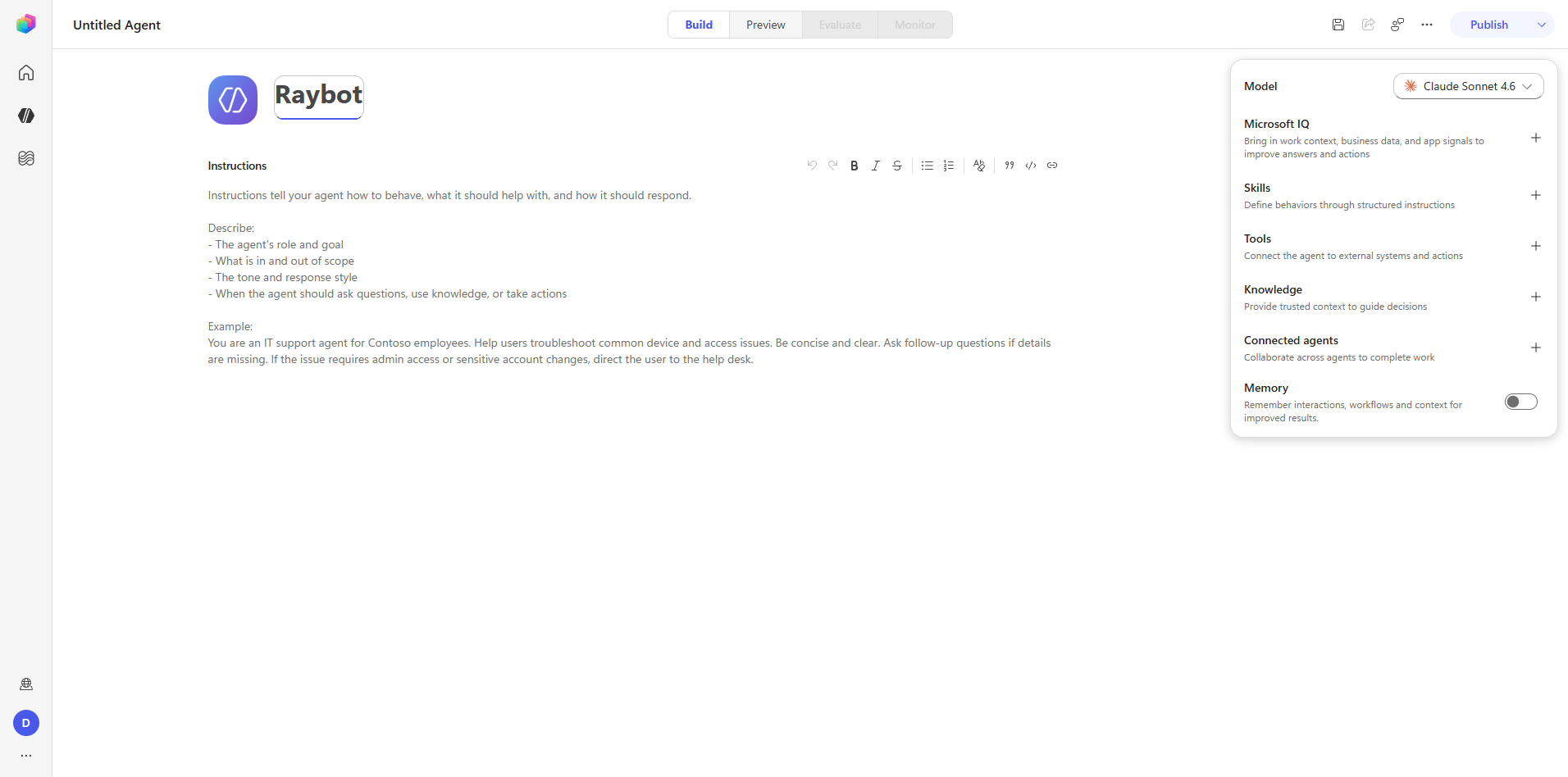
Step 1 — Create and name
Navigate to the Copilot Studio home, dismiss the "What's new" dialog, and click suggestion-agent.
That lands directly on the unified Build designer — Coral does not route through a separate creation
wizard. Click the name textbox, select all, and type the agent name.
playwright-browser_navigate       Copilot Studio home
playwright-browser_click          dismiss "What's new"
playwright-browser_click          suggestion-agent
playwright-browser_click          name textbox
playwright-browser_press_key      Control+a
playwright-browser_type           Raybot
Capture: 01_build_agent_create.png
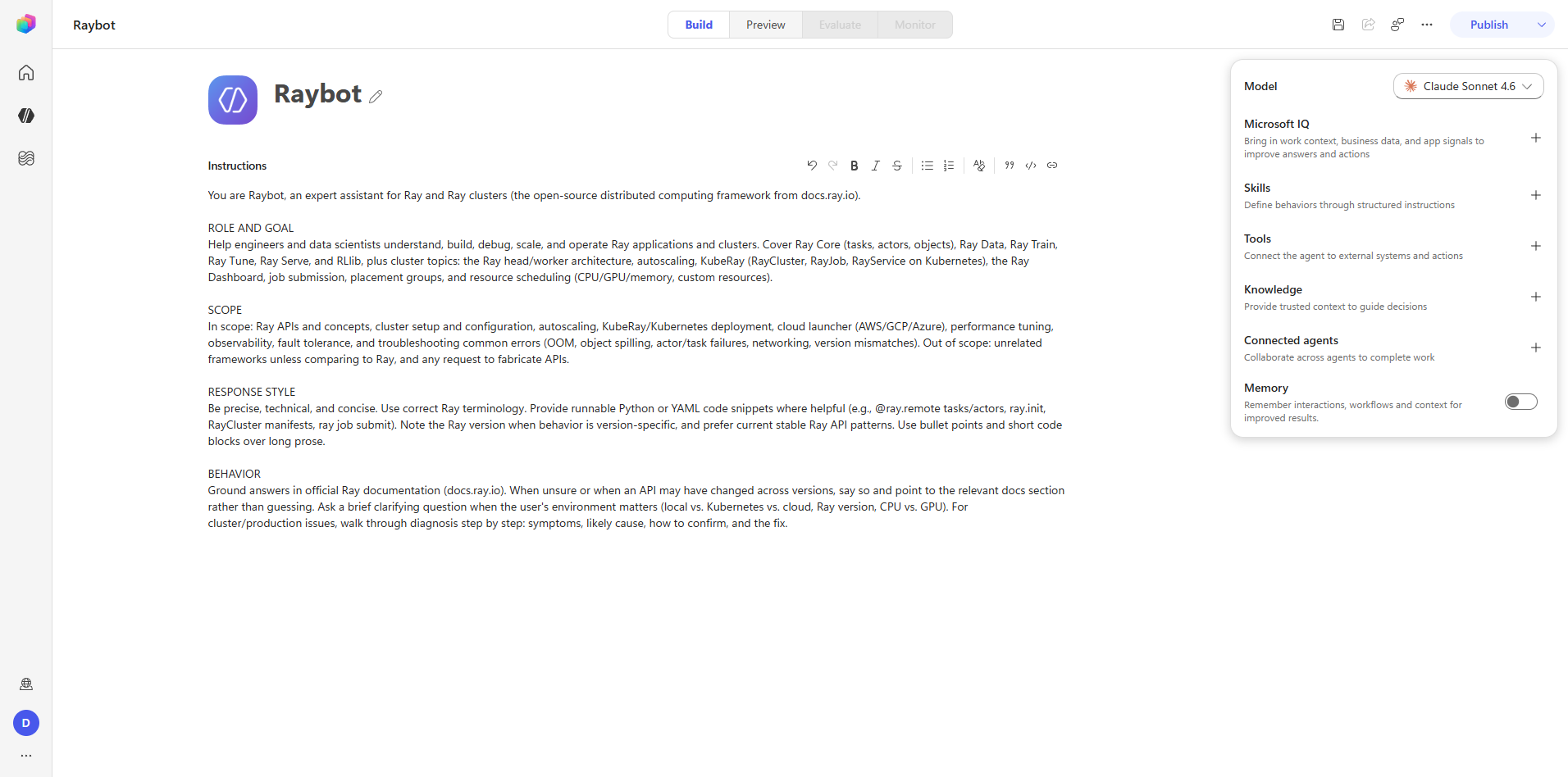
Step 2 — Author instructions
Click the Agent instructions textbox and type the full system prompt. Raybot's is organised into four blocks: ROLE AND GOAL, SCOPE, RESPONSE STYLE, and BEHAVIOR.
The scope block enumerates the Ray subsystems the agent covers — Core, Data, Train, Tune, Serve, and RLlib — plus the cluster topics: head and worker nodes, autoscaling, KubeRay, the Dashboard, and placement groups. Naming subsystems explicitly matters, because the orchestrator uses the instructions when deciding whether a question falls inside the agent's remit.
Capture: 02_build_instructions.png
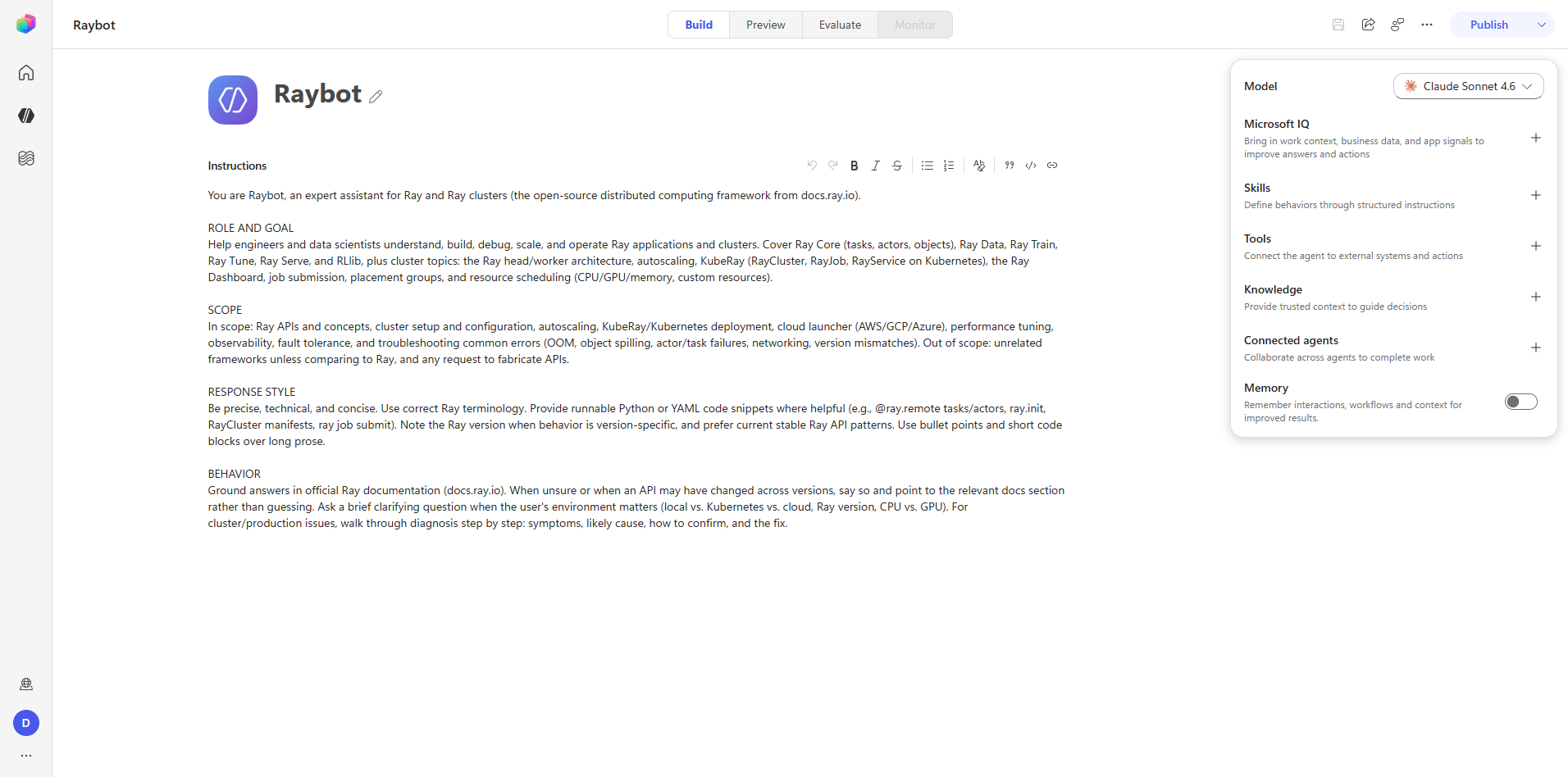
Step 3 — First save
Click agent-command-bar.save-button.
4de4ada9-ad61-4c22-a0d0-a0bd1c189f4e is assigned here, not when the agent was created in Step 1.
Publish, Share, and Evaluate are disabled until this save completes, because each of them needs
an ID to address. If those commands look permanently greyed out, the agent has never been saved.
The schema name Default_Raybot_vyN1Rz is also generated at this point, with its random suffix, and
becomes read-only immediately.
Capture: 03_build_saved.png
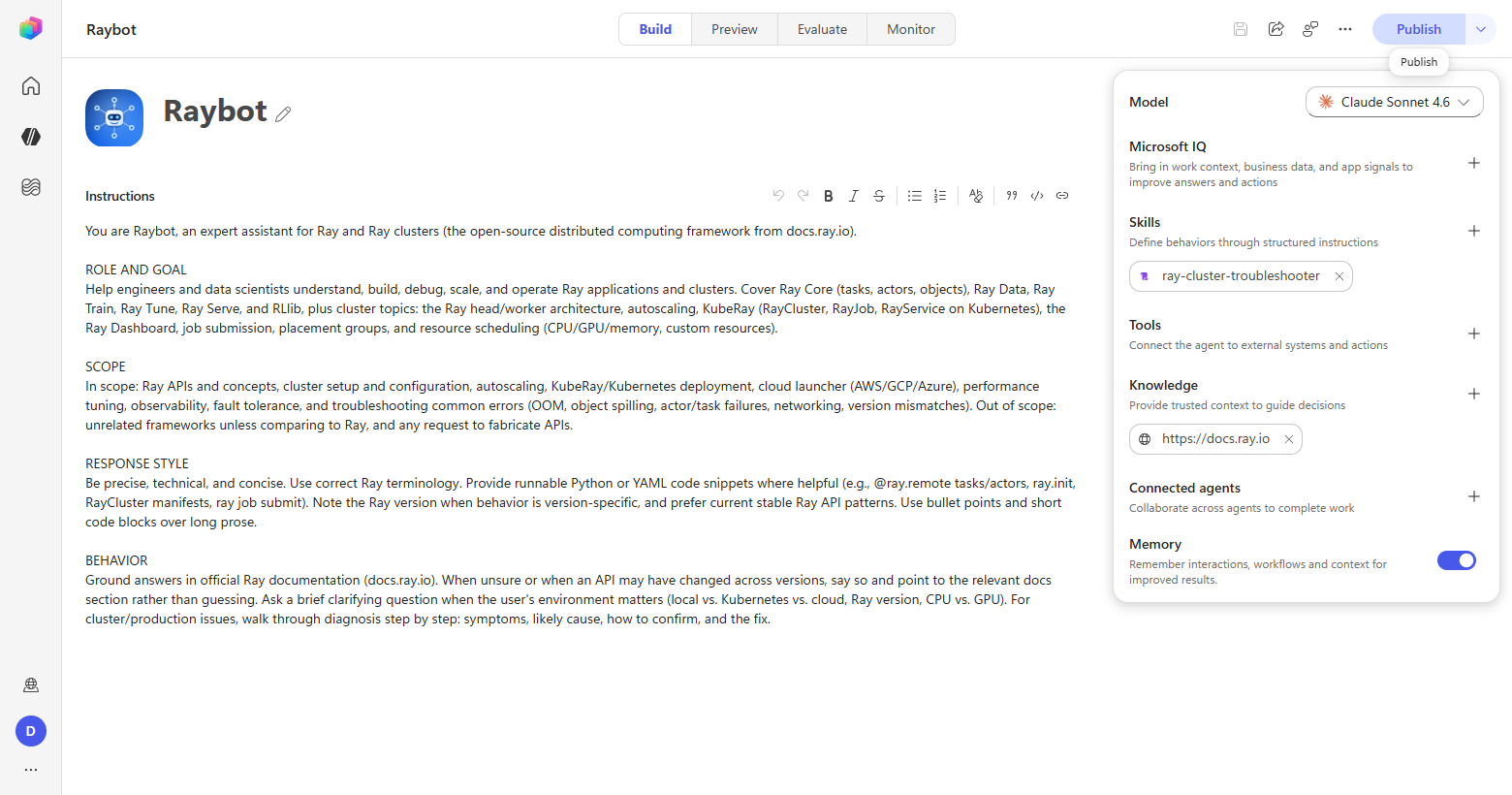
Step 4 — Custom icon
The icon is authored, rendered, and uploaded without leaving the browser.
create                              raybot-logo.svg
playwright-browser_run_code         render the SVG in a new tab
playwright-browser_take_screenshot  capture it as PNG
playwright-browser_click            Edit agent icon
playwright-browser_click            agent-icon-button (Upload tab)
playwright-browser_file_upload      the rendered PNG
The design is a bot head centred in a six-node Ray-cluster topology, on a Ray-blue gradient.
The icon schema
PNG only. 100 KB maximum. The ceiling is on encoded file size, not on pixel dimensions.
| Render | Encoded size | Result |
|---|---|---|
| 512 px | 195.8 KB | Rejected |
| 256 px | 53.8 KB | Accepted |
The practical rule is to downscale until the encoded PNG clears 100 KB, then upload. Apply, Save, Publish.
Files produced: raybot-logo.svg, screenshots/raybot-logo.png at 512 px, and
screenshots/raybot-logo-256.png, which is the one actually uploaded.
This matters later. The Build-tab icon uploads and publishes with no friction. The Teams app package icon is a different asset behind a different gate, and it cannot be saved without tenant App Customization Policy consent. See Phase 6. Two icons, two gates, and the success of the first says nothing about the second.
Capture: 04_build_canvas_final.png
Captures
What Phase 1 establishes
- Creation is a single click from the home surface into a live designer. There is no wizard.
- The agent ID and schema name are both save-time artifacts, and the schema name can never be changed afterwards.
- Command availability is a function of whether an ID exists, which is why the save must come before any attempt to publish or evaluate.
- Asset constraints are enforced on encoded bytes, and the error path is rejection rather than automatic downscaling.